
Introduction: When Copy-Paste Just Isn’t Enough
If you’ve ever found yourself copy-pasting the same email a hundred times, only to realize you misspelled one client’s name halfway through you’re not alone. Every growing business hits that point where manual communication simply can’t keep up with demand.
That’s where Mail Merge in Excel to Word steps in the unsung hero of office automation. It’s like having a personal assistant that can personalize hundreds of letters or emails in one go, without losing that human touch. Whether you’re sending out invoices, client updates, or event invitations, this little feature can save you hours every week.
Let’s break down how you can use Mail Merge to turn your everyday Excel data into perfectly tailored messages all in a few easy steps.
1. What Exactly Is Mail Merge and Why Should You Care?
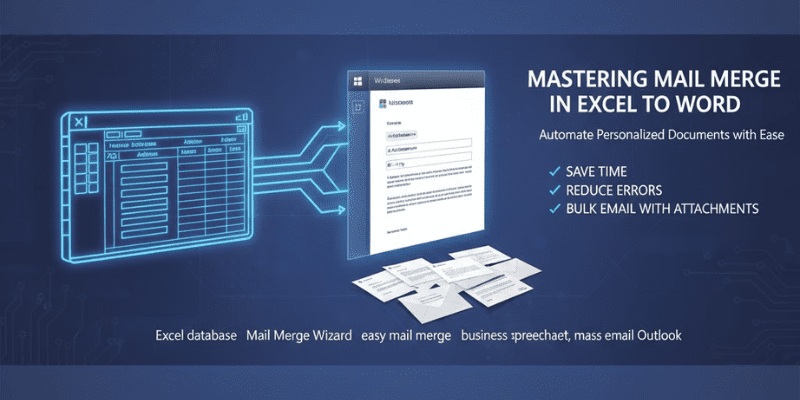
Mail Merge is a simple yet powerful feature that connects your Excel database with Microsoft Word. Imagine having a business spreadsheet full of customer details names, email addresses, company names, etc. and being able to generate personalized Word documents or emails from that data automatically.
In short, Mail Merge from Excel lets you:
- Personalize bulk communication without typing each name or address.
- Send mass email in Outlook with individual customization.
- Generate consistent, professional documents in minutes instead of hours.
Think of it as automation meets personalization the perfect combination for any marketer, HR professional, or business owner who values both efficiency and connection.
2. Setting the Stage: Preparing Your Excel Database
Your Excel spreadsheet is the backbone of this process. Each column represents a data field (like First Name, Last Name, Email, Address), and each row represents a unique recipient.
Here’s a quick tip:
✅ Keep your headers clear and simple (e.g., “FirstName,” not “FN”).
✅ Avoid empty rows or merged cells they confuse the Mail Merge wizard.
✅ Save your Excel file before moving on.
This structured business spreadsheet becomes your digital address book, ready to fuel the automation engine.
3. Creating the Connection: Mail Merge in Word
Now comes the fun part letting Word do the magic.
Open a new Word document and head to the Mailings tab. Here, you’ll find the Mail Merge Wizard, which walks you through every step:
- Choose Your Document Type: Letter or Email (depending on your goal).
- Select Recipients: Link your Excel file your carefully prepared database.
- Insert Merge Fields: Add placeholders like «FirstName» or «Company» wherever personalization is needed.
- Preview Your Results: Always check for alignment and spacing issues.
- Finish & Merge: Generate your personalized letters or emails instantly.
It’s an easy mail merge process that anyone can master with just a little practice.
4. Sending Bulk Emails the Smart Way
Once your template is ready, you can send bulk emails directly through Outlook using Word’s built-in options. Select “Email Messages” as your document type, and specify which field (like “Email Address”) to use.
This creates a seamless connection between Word and Outlook, enabling mass email outreach without losing personalization. And yes, you can even perform a Mail Merge with attachments using add-ins or third-party tools if you need to include PDFs or files in your emails.
The result? Dozens or even hundreds of individualized messages sent in minutes, not hours.
5. Real-World Example: Saving Time, One Campaign at a Time
A friend of mine who runs a small marketing agency used to manually email client reports nearly 80 every month. Once she switched to Mail Merge in Excel to Word, she cut that process down from three days to under an hour.
She created a polished template in Word, linked her Excel sheet of clients, and with a few clicks, every client got a customized report with their name, company, and metrics.
It’s not just faster it’s smarter. That’s what automation should feel like: effortless, reliable, and still personal.
6. Pro Tips for a Smooth Mail Merge Workflow
Here are a few things I’ve learned after years of using Mail Merge in business settings:
- Always test with a small batch first. Catch formatting or data errors before sending to everyone.
- Use short, clear field names in your Excel sheet.
- Back up your database. Mistakes happen better safe than sorry.
- Customize your tone. Even automated messages can sound friendly and personal.
With a little practice, creating a Mail Merge becomes second nature a must-have skill for any IT professional, marketer, or business owner aiming to streamline communication.
Conclusion: Work Smarter, Not Harder
Automation isn’t about removing the human touch it’s about amplifying it. Using Mail Merge in Excel to Word, you can keep your communication personal, efficient, and professional without spending endless hours crafting messages.
So, the next time you find yourself staring at a long contact list, remember: you don’t have to do it alone. Let Mail Merge do the heavy lifting while you focus on what truly matters building relationships that last.