
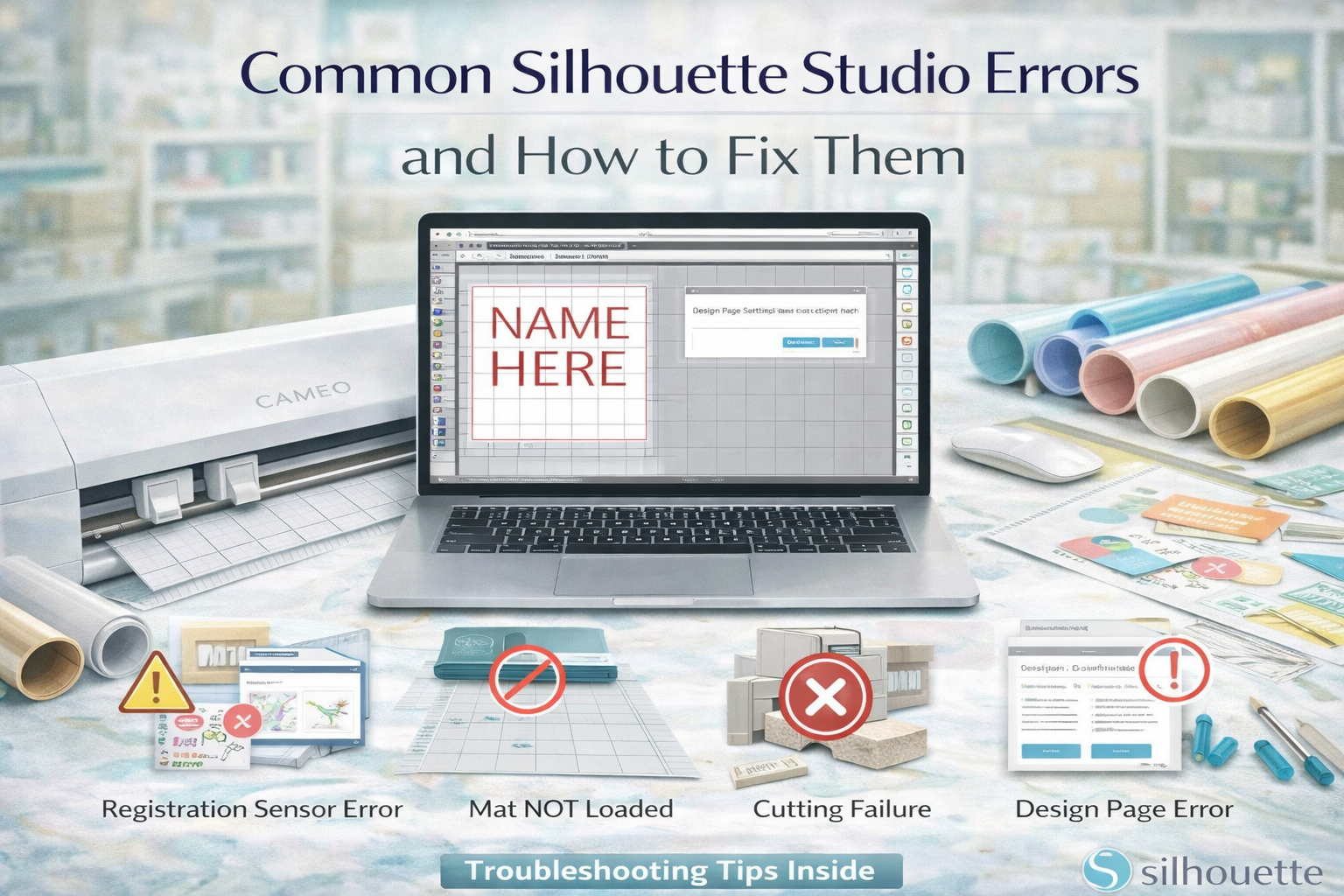
Silhouette Studio® is a powerful and intuitive design software that connects your creative ideas to your Silhouette cutting machine. Whether you’re a hobby crafter, teacher, or small business owner, it plays a central role in your workflow; helping you design, customize, and send projects to your machine.
But like any software, you may occasionally run into issues.
The good news? Most Silhouette Studio errors are common, easy to fix, and often preventable once you understand what’s happening.
In this guide, we’ll walk through the most common Silhouette Studio problems, what causes them, and how to fix them; so you can get back to creating quickly.
Understanding the Silhouette Ecosystem
Before troubleshooting, it helps to understand how everything connects.
Silhouette’s system includes:
- Silhouette Studio® (design software)
- Silhouette cutting machines (Cameo, Portrait, etc.)
- Silhouette Design Store (digital design marketplace)
Most issues occur at the connection points between:
- Software and machine
- Design files and cut settings
- Imported files and formatting
Let’s break down the most common problems.
1. Machine Not Connecting to Silhouette Studio
The Problem
You click “Send,” but your machine doesn’t respond; or isn’t detected at all.
Possible Causes
- USB or Bluetooth connection issues
- Machine not powered on
- Outdated software
- Incorrect machine selection
How to Fix It
- Make sure your machine is powered on
- Check USB or Bluetooth connection
- Restart both your computer and machine
- Open the Send panel and confirm the correct device is selected
- Update Silhouette Studio® to the latest version
Pro Tip: If using Bluetooth, reconnect the device in your system settings.
2. Designs Not Cutting (Nothing Happens)
The Problem
Your design appears in Studio, but nothing cuts when you send the job.
Possible Causes
- Cut lines not enabled
- Design set to “No Cut”
- Wrong line color selected
How to Fix It
- Open the Send tab
- Select your design
- Make sure “Cut” is selected (not “No Cut”)
- Check line color settings and ensure the correct color is active
Quick Check: If lines aren’t highlighted in red in the Send panel, they won’t cut.
3. Misaligned Cuts or Off-Center Designs
The Problem
Your cuts don’t line up with your material or printed design.
Possible Causes
- Incorrect mat placement
- Wrong page setup
- Material not loaded properly
How to Fix It
- Go to the Page Setup panel
- Match your mat size and material size
- Align your design within the cutting area
- Load the mat correctly into the machine
Pro Tip: Always check the preview in the Send tab before cutting.
4. Blade Not Cutting Through Material
The Problem
The machine runs, but the material isn’t fully cut.
Possible Causes
- Blade depth too low
- Incorrect material settings
- Worn blade
How to Fix It
- Increase blade depth
- Adjust force and speed settings
- Select the correct material type in the Send panel
- Replace the blade if it’s dull
Test Cut Tip: Always run a small test cut before starting a full project.
5. Cutting Too Deep or Tearing Material
The Problem
The blade cuts through the backing or damages the material.
Possible Causes
- Blade depth too high
- Too much force
- Wrong material settings
How to Fix It
- Reduce blade depth
- Lower force settings
- Choose the correct material preset
Balance is key: Adjust settings gradually until you find the perfect combination.
6. Software Freezing or Crashing
The Problem
Silhouette Studio becomes slow, freezes, or crashes unexpectedly.
Possible Causes
- Large or complex files
- Outdated software
- System memory limitations
How to Fix It
- Save your work frequently
- Close unused programs
- Update Silhouette Studio®
- Simplify complex designs (reduce nodes or layers)
Pro Tip: Restart your computer regularly to improve performance.
7. Imported Files Not Cutting Correctly
The Problem
SVG or other imported files don’t cut as expected.
Possible Causes
- Missing cut lines
- Incorrect file formatting
- Grouped or locked layers
How to Fix It
- Select the design and check cut settings
- Use “Release Compound Path” if needed
- Ungroup elements
- Ensure lines are set to “Cut”
Design Store Advantage: Files from the Silhouette Design Store are already optimized for cutting, reducing these issues.
8. Registration Marks Not Reading (Print & Cut Issues)
The Problem
The machine can’t detect registration marks.
Possible Causes
- Poor lighting
- Incorrect print alignment
- Smudged or faint marks
How to Fix It
- Ensure good lighting around the machine
- Reprint the design with clear registration marks
- Check page setup matches print settings
- Clean the sensor area
Tip: Avoid glossy paper unless your settings support it.
9. Design Store Files Not Appearing in Library
The Problem
You downloaded a design, but it’s not visible in Silhouette Studio®.
Possible Causes
- Not logged into your account
- Sync issues
- Library not refreshed
How to Fix It
- Log into your Silhouette account in Studio
- Click “Sync Library”
- Restart the software
Good to Know: Design Store files integrate automatically when synced properly.
10. Slow Workflow and Inefficient Setup
The Problem
Projects take longer than expected due to repeated setup or confusion.
Solution: Build Better Systems
- Save frequently used templates
- Organize your design library
- Use Design Store collections for consistency
- Batch similar projects together
Efficiency improves with organization.
Why the Silhouette Design Store Reduces Errors
One major advantage of using the Silhouette Design Store is reliability.
Design Store files are:
- Optimized for Silhouette Studio®
- Properly formatted for cutting
- Tested for compatibility
This reduces issues like:
- Missing cut lines
- Incorrect scaling
- File import errors
For both beginners and businesses, this saves time and frustration.
Best Practices to Prevent Errors
Prevention is always better than troubleshooting.
1. Always Do a Test Cut
Before starting a full project, test your settings.
2. Keep Software Updated
New updates fix bugs and improve performance.
3. Use Correct Material Settings
Match your material type in the Send panel.
4. Organize Your Files
A clean library improves workflow and reduces confusion.
5. Start Simple
Especially for beginners; build confidence before tackling complex designs.
When to Troubleshoot vs. Restart
Sometimes the simplest fix is the best one.
If something feels “off”:
- Restart Silhouette Studio®
- Restart your machine
- Reopen your file
This often resolves temporary glitches.
Final Thoughts: Confidence Through Understanding
Every creator; whether beginner or experienced; runs into technical issues at some point.
The difference is knowing how to respond.
With Silhouette Studio®, Silhouette cutting machines, and the Silhouette Design Store, you have a reliable system designed to make crafting easier. And once you understand the most common errors and fixes, those occasional issues become small, manageable moments; not roadblocks.
So don’t let a technical hiccup slow you down.
Because every problem you solve makes you a more confident, capable creator; and brings you one step closer to mastering your craft.